
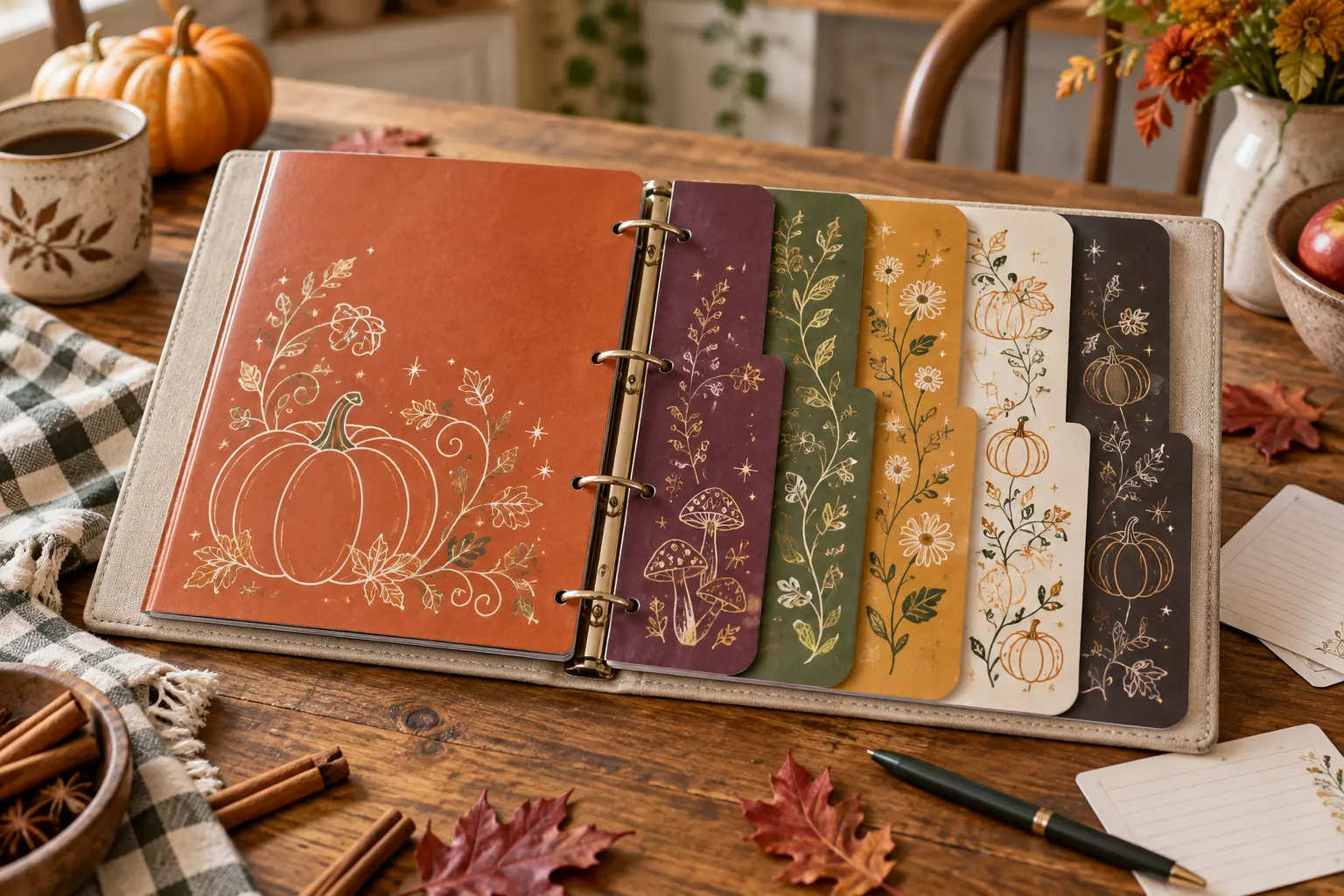
A recipe binder is most useful when it can handle floury fingers, quick additions, and years of rearranging. This project builds six sturdy sections from ready-made or hand-cut divider bases, then adds printed pumpkin, mushroom, flower, vine, and star panels that are cut separately with Print Then Cut. Keeping the decorative panels smaller than the full page makes the method realistic across more home cutters and leaves the holes, tabs, and flexing edges strong.
This is an original project plan based on common Print Then Cut, cold-lamination, paper-crafting, and binder-organization methods. Printer ink, color profile, paper coating, laminate finish, sensor lighting, machine calibration, blade condition, mat grip, adhesive, divider stock, binder geometry, and software limits can all change the result. Make a plain-paper fit proof and one complete material sample, use the current size limits shown by the exact machine software, and follow the latest directions from every printer, cutter, laminate, adhesive, and binder maker. Preserve the purchased artwork and simplify only duplicate working files. The featured KleanKutChaos bundle supplies the decorative artwork; the featured KleanKutChaos file is the design source for this tutorial, and this tutorial does not claim that the pictured combination was physically tested with the listing files.
What you’ll need
- 15 Whimsical Pumpkin SVG Bundle from the featured KleanKutChaos listing
- One sturdy three-ring recipe binder with smooth covered rings, intact hinges, and enough depth for the planned pages
- Six ready-made letter-size tab dividers or six sheets of heavy divider cardstock approved for the printer and laminating method
- White matte printable sticker paper compatible with the exact inkjet or laser printer
- Matte self-adhesive cold-laminate sheets compatible with the printed sticker paper
- Cricut-, Silhouette-, or similar machine that supports Print Then Cut or Print & Cut
- Compatible clean standard-grip mat and sharp fine-point blade
- Cutting-machine software and duplicate PNG working copies of the selected designs
- Printer with current ink or toner and support for the selected printable media
- Plain copy paper for calibration and a full-size binder proof
- Paper trimmer, detail scissors, ruler, pencil, and a hole punch matched to the binder rings
- Brayer, scraper, fine tweezers, bright task light, and low-tack tape
- Optional corner rounder and clear hole-reinforcement rings
- Eye protection and a lidded container for blades, laminate backing, and small scraps
How to make it
- 1
Inspect the binder and choose sections
Open and close the empty binder, check that every ring meets cleanly, and reject hardware with sharp edges, gaps, rust, or a loose hinge. Choose six useful sections such as Breads, Soups, Mains, Sides, Sweets, and Drinks. Write the labels on paper first so the longest word determines the tab width rather than being squeezed in later.
- 2
Measure the real page clearances
Measure the binder cover, closed rings, interior pockets, and an ordinary recipe page. Insert one divider base and mark its safe visible area, hole margin, flexing edge, and tab projection. Leave space around every punched hole and keep decoration away from the crease where pages turn over the rings.
- 3
Plan six coordinated panels
Assign one color and one broad motif to each section: for example, a large pumpkin, gourd, mushroom cluster, flower, vine, or starry pumpkin. Keep the artwork inside decorative panels smaller than the divider page instead of trying to Print Then Cut an entire letter-size divider. Repeat a simple border or color swatch so the set feels connected.
- 4
Prepare duplicate artwork
Preserve the purchased files and edit only duplicate working copies. Export the chosen designs as high-resolution PNGs with transparent backgrounds, remove isolated dots, thicken weak stems, and simplify hairline details. Flatten each finished color composition before importing it into the cutting software so its printed appearance and single outer cut line stay predictable.
- 5
Build the panels within current limits
Create six rounded rectangles or simple arch panels in the cutter software and place one flattened motif inside each. Add a modest white offset around the artwork, then confirm that every panel fits inside the current printable area displayed by the exact machine, page size, and software version. Do not cover, resize, redraw, or move the generated registration marks.
- 6
Make a plain-paper fit proof
Print the full layout on ordinary paper through the software's Print Then Cut workflow. Rough-cut each panel, tape it to a divider, insert all six dividers, and close the binder. Check that the tabs remain staggered and readable, the panels do not disappear into the ring curve, and no decoration crosses a hole or repeatedly bends.
- 7
Calibrate before using specialty media
Run the machine maker's current Print Then Cut or Print & Cut calibration with plain white paper and the tool it specifies. Complete every adjustment the software requests, then print and cut one small proof panel. Recalibrate if the cut line is consistently shifted rather than trying to compensate by dragging artwork away from the registration system.
- 8
Print and dry a material sample
Load one sheet of the exact printable sticker paper in its correct orientation. Use the system print dialog and the media, quality, scale, and tray settings required by the paper, printer, and cutting software. Print one panel, keep the registration marks crisp and unaltered, then let the ink or toner dry or cool for the full period specified by the media maker.
- 9
Add matte cold laminate safely
On the sample, trim and place matte self-adhesive laminate only over the artwork area and inside the registration box, leaving every sensor mark fully exposed unless the cutter maker explicitly approves covering it. Hinge one edge, peel the backing gradually, and smooth outward with light overlapping strokes. Never use a hot laminator on media not rated for heat.
- 10
Test-cut the complete sample
Place the sample on a clean compatible mat, load it in consistent neutral lighting, and choose the closest maker-recommended material setting. Cut the small panel and inspect both the offset and the blade depth before unloading. Change only one setting at a time; if glare prevents scanning, use less glossy approved laminate or leave a wider uncovered zone around the marks.
- 11
Produce the six final panels
Print, dry, laminate, and cut the final panels one sheet at a time with the proven setup. Keep the registration area flat, clean, and free of tape or fingerprints. Verify each cut before unloading the mat, then peel the mat away from the sheet to reduce curling and store the finished panels on their liners in section order.
- 12
Prepare the divider bases
If using ready-made dividers, confirm that their tabs and punched holes fit without stress. For handmade bases, trim all six to the same page size, round exposed corners if desired, and punch one scrap template before the final stack. Insert the undecorated bases and turn every page to make sure no hole binds or tears.
- 13
Apply and label the panels
Clean dry hands and divider surfaces, then align each panel with a ruler and a low-tack paper hinge. Peel a short section of liner, smooth from the hinge outward, and avoid stretching the sticker. Hand-letter the tabs or add separate tested labels, keeping text large and away from the tab edges. Apply reinforcement rings only if they do not restrict movement on the binder hardware.
- 14
Assemble, settle, and audit
Let the adhesive settle for the time specified by the sticker and laminate makers before flexing the pages repeatedly. Assemble the dividers in order, add recipes in protective sleeves if desired, and close the filled binder without forcing it. Wipe one laminated sample with the approved method, then store the binder upright in a dry area well away from cooking heat, steam, flames, sinks, and food preparation surfaces.
Practical finishing tips
- Number the divider backs in pencil before decorating so the planned tab sequence cannot be shuffled.
- Use one large motif per panel; small printed details are harder for sensors and blades to follow and make section labels less readable.
- Keep a note with printer media, quality, laminate, blade, pressure, and calibration settings inside the binder pocket for future replacements.
- Choose matte rather than glossy laminate when the material makers permit it; lower glare is easier to read and can help optical sensors.
- Save one unused proof panel and a spare divider base so a damaged section can be rebuilt without remeasuring the binder.
- Place loose family recipes in sleeves or pockets rather than adhering irreplaceable originals directly to a decorative divider.
Troubleshooting
Stop and confirm that the marks are unaltered, uncovered, flat, and printed on clean white media in the expected orientation. Reduce direct glare, follow the maker's lighting guidance, recalibrate, and test again; hand-cut the panel if the exact laminated media is unsupported.
Run the official calibration again, confirm that the print dialog introduced no scaling outside the cutter workflow, and repeat a plain-paper test. Do not manually move individual graphics to compensate for a system-wide alignment error.
Use paper and ink or toner that are mutually compatible, select the specified printer setting, and allow the full dry or cool time before touching the surface. Reprint rather than sealing a smeared panel.
Work on a clean flat surface, hinge only one edge, expose the adhesive gradually, and smooth from the center outward. Replace badly creased laminate rather than puncturing it where moisture and dirt can enter.
Return to the paper proof, reorder or resize the tabs, and check the binder while closed and filled with sample pages. Replace the affected base instead of trimming a decorated tab too close to its label.
Remove it before it can catch on another page. Confirm surface cleanliness, material compatibility, edge clearance, and settling time, then recut a slightly smaller panel with rounded corners. Do not add unknown liquid glue over a failing pressure-sensitive adhesive.
Ways to make it yours
Skip the printer and cut one simplified pumpkin silhouette per divider from matte adhesive vinyl, following the vinyl and divider makers' compatibility directions.
Scale the proof for a compact binder, keeping motifs broad and verifying the smaller cutter layout, tab reach, hole spacing, and printable area from scratch.
Add one acid-free archival pocket behind the first divider for copies of handwritten recipes while storing fragile originals separately under archival guidance.
Keep the six practical dividers year-round and print one removable pumpkin cover insert for fall, then exchange only the insert when the season changes.
Keep crafting
- DIY Whimsical Pumpkin Dry-Erase Harvest Menu Board — Turn a thrifted glass frame into a reusable fall menu board with a whimsical pumpkin border protected behind the glass and a smooth write-on surface in front.
- DIY Cute Bat Magnetic Bookmarks for Halloween Reading — Turn six playful bat cut files into slim magnetic bookmarks with hidden paired magnets, reinforced paper hinges, and book-friendly rounded edges.
- DIY Gothic Apothecary Drawer Labels With Removable Vinyl — Turn a plain mini-drawer cabinet into functional gothic storage with nine ornate frame decals, readable center labels, and a reusable placement jig.
Inspiration & further reading
This is an original Klean Kut Halloween Crafts project inspired by approachable techniques shared across trusted craft and home sources. Explore Cricut Print Then Cut guide and Cricut Print Then Cut calibration guide for more ideas and technique background.