
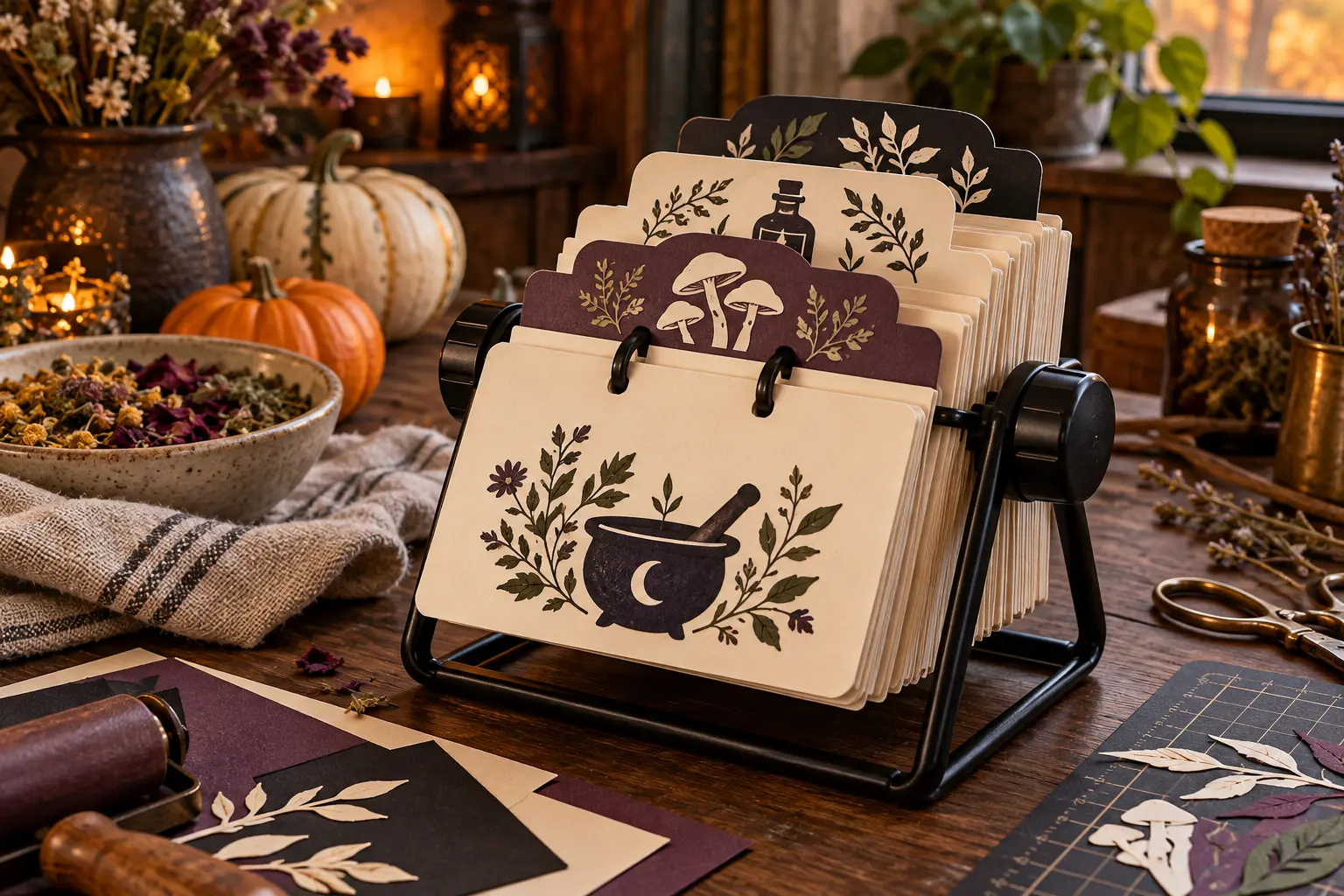
A rotary card file keeps a working recipe visible without balancing a phone beside the mixing bowl, and the dividers can make the whole collection feel like a tiny household grimoire. This version begins with a stable commercial 4-by-6-inch index-card carousel, then adds six practical categories and large Print Then Cut motifs. The cards stay replaceable, the artwork remains safely away from food-contact surfaces, and the broad tab shapes are sturdy enough for regular adult kitchen use.
This is an original project plan based on ordinary cardstock, inkjet printing, Print Then Cut, paper-trimming, and index-card organization methods. Printer feed, ink, cardstock coating, software version, sensor, blade, mat, carousel ring spacing, hole pattern, room humidity, and drying time can all change the result. Test the complete print-and-cut workflow on plain paper and one spare divider before making the full set. The KleanKutChaos listing supplies the featured kitchen-witch artwork; the featured KleanKutChaos file is the design source for this tutorial. This tutorial does not claim that the pictured combination was physically tested with the listing files.
What you’ll need
- Kitchen Witch Pantry SVG Bundle from the featured KleanKutChaos listing
- One ready-made desktop rotary index-card file sized for 4-by-6-inch cards, with a stable base and intact rings or spindles
- At least six compatible blank 4-by-6 divider cards with broad top tabs; match the carousel maker's exact hole spacing and card orientation
- Plain 4-by-6 recipe or index cards for the recipes themselves
- Matte white inkjet cardstock approved by both the printer and cutting-machine makers; avoid reflective, metallic, glitter, or heavily textured stock
- Ordinary white copy paper for calibration and low-ink layout tests
- Cricut, Silhouette, or similar Print Then Cut-compatible machine with current software, a clean fine-point blade, and the mat specified for the chosen cardstock
- Home inkjet printer with adequate ink and a supported cardstock feed path
- Paper trimmer, metal ruler, pencil, rounded-corner punch if desired, and the carousel maker's matching card punch only if blank dividers are not pre-punched
- Brayer, scraper, weeding tool, low-tack painter's tape, and clean lint-free cloth
- Acid-free dry adhesive or double-sided tape explicitly approved for paper, used only if motifs are printed and cut separately from the divider
- Optional matte self-adhesive protective film for the artwork area only, applied after cutting and kept clear of registration marks, holes, rings, and card-writing areas
- Safety glasses and any protective equipment required by the printer, cutter, trimmer, punch, or adhesive makers
How to make it
- 1
Inspect the carousel before decorating
Set the empty rotary file on a level counter and rotate it through a full turn. Confirm that the base does not rock, the rings stay closed, and no edge is bent, cracked, or sharp. Measure one original card and the distance between hole centers rather than assuming every 4-by-6 system uses the same punch pattern.
- 2
Choose useful recipe categories
Plan six broad sections that match the way you actually cook, such as Breakfast, Soups, Mains, Sides, Baking, and Drinks. Keep labels handwritten or printed separately in large high-contrast type. Avoid vague potion names on the working tabs if they would make the file slower to use while cooking.
- 3
Make a full-size paper map
Trace one divider on copy paper, including the tab, holes, and the area that disappears behind the card in front. Mark a quarter-inch clearance around every hole and moving ring. Reserve the tab and upper third for decoration so recipe cards can rotate without catching raised paper edges.
- 4
Test the carousel with plain cards
Load several blank cards and dividers, rotate them from front to back, and watch the holes and top tabs. Trim or reject any card that binds. The decorated version should follow this proven shape exactly; artwork cannot compensate for incompatible card stock or incorrect hole spacing.
- 5
Prepare duplicate artwork files
Open copies of the purchased kitchen-witch designs and preserve the originals unchanged. Select one large motif for each divider, such as an herbal bottle, mortar and pestle, mushroom cluster, or leafy accent. Simplify only isolated specks or fragile outer details that would create weak cuts, and do not imply the listing includes editable recipe text.
- 6
Build broad printable embellishments
Place each motif inside a simple cream, plum, or black arch, oval, or rounded rectangle. Add a smooth white or cream offset where dark artwork needs separation from the divider. Keep the smallest finished dimension around two inches and join narrow stems or leaves to the backing shape so no tiny loose pieces enter the kitchen.
- 7
Decide between integrated and layered dividers
For the cleanest build, print the motif and color block directly on compatible blank divider stock if the printer accepts its size and hole-free feed edge. Otherwise Print Then Cut separate broad medallions and attach them to purchased dividers after cutting. Never feed pre-punched stock through a printer unless both the printer and card maker allow it.
- 8
Arrange the Print Then Cut sheet
Flatten each motif group into one printable image while preserving resolution. Arrange the medallions inside the software's current printable-area guide with generous spacing and clean sensor margins. Print Then Cut normally uses reading orientation rather than mirrored artwork; confirm the preview and final size numerically before printing.
- 9
Calibrate on copy paper
Run the cutting-machine maker's current Print Then Cut calibration with the specified plain paper and tool. Then print a complete low-ink test sheet on copy paper at 100 percent scale and cut it. Place the test medallions on the divider map to confirm that the artwork clears the tabs, holes, rings, and card edges.
- 10
Test the actual cardstock
Print one small medallion on the chosen matte cardstock, let the ink dry, and cut it with the material setting recommended for that exact stock. Check for feathered ink, torn fibers, incomplete corners, mat curl, and sensor misalignment. Adjust only after returning to a fresh test; do not continue with a damaged mat or dull blade.
- 11
Print the final motifs
Load one approved cardstock sheet at a time in the tested orientation and print without fit-to-page, borderless enlargement, or extra scaling. Keep registration marks clean, flat, and matte. Let the sheet dry for the full interval recommended by the ink and paper makers before handling the printed surface or placing it on a mat.
- 12
Cut and release without curling
Place the dry sheet on the specified mat and smooth it with a brayer without touching the sensor marks. Cut one sheet at a time. After cutting, turn the mat face down and peel the mat away from the paper so the broad medallions remain flat. Discard pieces with torn edges or exposed adhesive.
- 13
Attach the artwork to the dividers
Dry-fit every medallion on its mapped divider before using adhesive. Apply a thin, even layer of acid-free dry adhesive within the paper edge, press from the center outward, and keep the artwork at least a quarter inch from holes and moving hardware. Leave the writing tab readable and let any maker-specified adhesive cure fully.
- 14
Add labels and recipe cards
Write the six category names in dark archival pen or add large matte paper labels that do not cover the artwork. Fill recipe cards with ingredients and steps away from the carousel, then let the ink dry before loading them. Keep allergen notes, temperatures, and timing information explicit rather than decorative.
- 15
Load, rotate, and refine
Install the dividers in the planned order, add only enough recipe cards for the rings to rotate freely, and turn every card through a complete cycle. If a tab collides or a medallion lifts, remove that divider and fix it on the worktable. Do not force the mechanism or trim a mounted card near the rings.
- 16
Choose a safe kitchen location
Place the finished carousel on a stable dry counter outside the sink splash zone, stovetop heat zone, and direct food-preparation area. Set the selected recipe at the front with clean, dry hands, then move the carousel away before mixing raw ingredients. Wipe only the metal base with its maker-approved method and replace any stained, swollen, or delaminating card.
Practical finishing tips
- Keep the decorative palette to three colors so many recipe cards still read as one organized collection.
- Use the purchased art as focal motifs and basic software shapes for the backing medallions; this makes detailed black artwork easier to cut and handle.
- Photograph handwritten family recipes before placing them in the carousel, and keep the original cards stored separately.
- Write recipes on removable cards, not directly on the decorative dividers, so categories can grow without remaking the artwork.
- Leave at least one empty card's worth of space between categories; the gap makes the tabs easier to find and reduces ring friction.
- If you want wipeable reference cards, use purpose-made sleeves compatible with the carousel rather than laminating unknown cardstock through hot equipment.
Troubleshooting
Remove the card and compare its holes against an original supplied card. Repunch only with the carousel maker's compatible punch and only on a flat work surface. If the spacing is wrong, replace the divider rather than widening holes with scissors or forcing it around the rings.
Return to plain copy paper, run the current Print Then Cut calibration, confirm 100-percent print scale, and print a fresh test. Keep the sensor marks flat, clean, matte, and free from tape or protective film.
Check for glare, shadows, low printer ink, a dark or reflective sheet, incorrect material size, or a warped mat. Use compatible matte white cardstock and the machine maker's recommended lighting and print settings; do not trace over the marks or guess the cut.
Peel the mat away from the paper with the mat face down, use a less tacky mat approved for the cardstock, and store dry pieces flat under a clean lightweight board. Replace rather than glue down a badly creased piece.
Remove the divider from the kitchen, discard any contaminated piece, and remake it with a broad smooth backing shape plus an even paper-safe adhesive. Keep embellishments away from the tab edge, holes, and ring path.
Remove excess cards until the mechanism turns freely, distribute cards evenly, and inspect for bent rings or swollen paper. Do not oil the mechanism near absorbent cards unless the carousel maker explicitly specifies a food-area-safe maintenance method.
Ways to make it yours
Limit the file to cookies, breads, pies, frostings, candies, and drinks, then assign one muted color and one large motif to each section.
Print the motifs as simple rectangles on matte cardstock, trim with a paper trimmer, round the corners, and mount the large panels to compatible dividers without attempting intricate silhouette cuts.
Use purpose-made 4-by-6 sleeves on a compatible rotary file and place high-quality copies inside while the irreplaceable original cards remain stored flat and protected elsewhere.
Replace recipe categories with Monday through Sunday plus Shopping List, then rotate one weekly set to the front while keeping every card clear of food and wet hands.
Keep crafting
- DIY Whimsical Pumpkin Recipe Binder Dividers With Cricut Print Then Cut — Build six wipe-clean recipe sections with whimsical pumpkin artwork, sturdy tabs, and a full calibration and fit check before cutting.
- DIY Witchy Sewing Notions Box With Layered Cricut Vinyl — Turn a plain wooden box into a practical witchy sewing organizer with a carefully simplified portrait, layered vinyl accents, and removable interior dividers.
- DIY Haunted Teacup Halloween Tea-Towel Ladder With Cricut HTV — Dress a small countertop display ladder with three washable cotton towels featuring haunted teacup, bat-teapot, and celestial spoon motifs cut from heat-transfer vinyl.
Inspiration & further reading
This is an original Klean Kut Halloween Crafts project inspired by approachable techniques shared across trusted craft and home sources. Explore Cricut How to Print Then Cut in Design Space, Cricut Print Then Cut calibration instructions, Cricut Print Then Cut compatible-material guidance, Cricut sensor-mark troubleshooting and U.S. Consumer Product Safety Commission Art and Craft Safety Guide for more ideas and technique background.