
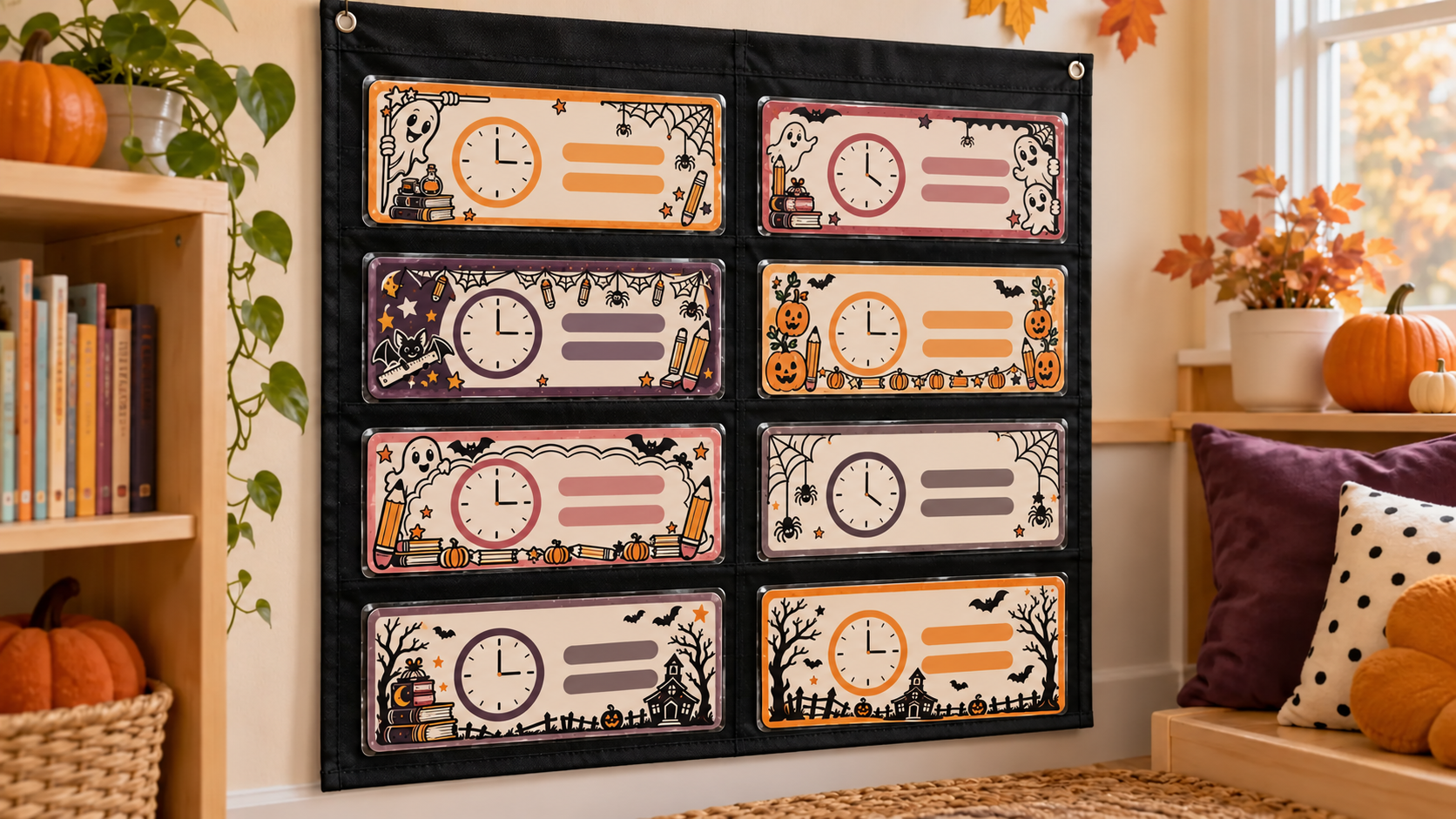
A visual schedule works best when the order is easy to scan and simple to change. This project pairs a complete factory-made fabric pocket chart with a coordinated set of large cardstock routine cards. Each card uses one Halloween classroom border as a decorative frame, plus a plain-language label and a simple activity icon. The cards are printed and cut on matte cardstock first, then laminated individually so glossy film never covers the Print Then Cut sensor marks.
This is an original project plan based on ordinary home-printer, cutting-machine, and lamination methods. Printer feed, ink, cardstock, blade, mat, machine sensor, software version, pocket size, laminate formula, laminator temperature, wall hardware, lighting, and classroom requirements can all change the result. Follow the current instructions for every exact material, tool, pocket chart, and mounting surface, and make one complete sample before producing the set. The KleanKutChaos listing supplies the featured decorative border artwork only. The featured KleanKutChaos file is the design source for this tutorial, and this tutorial does not claim that the pictured combination was physically tested with the listing files.
What you’ll need
- 17 Halloween Classroom Border SVG Bundle from the featured KleanKutChaos listing
- One complete factory-made hanging fabric pocket chart with intact seams, clear pockets large enough for the planned cards, and its original mounting instructions and hardware
- Bright white or lightly colored matte cardstock approved by the printer maker and compatible with the selected Print Then Cut machine
- Compatible Cricut, Silhouette, or similar Print Then Cut machine with current software, a clean fine-point blade, and the mat specified for the cardstock
- Inkjet or other printer approved for the exact printable material; never feed a heat-sensitive inkjet-only product through a laser printer
- Standard thermal laminating pouches and laminator approved for the finished cardstock cards, or a maker-approved cold self-adhesive laminating system
- Plain printer paper for calibration and full-size layout tests
- Paper trimmer or scissors, ruler, pencil, removable notes, and a corner rounder only if it leaves every laminated seal intact
- A short list of the actual classroom routines, times, room names, or activity labels needed for the display
- Large, simple activity icons you created or are licensed to use, plus a readable classroom font
- Dry-erase marker and soft cloth only when the laminate maker says its surface is erasable
- The pocket-chart maker's approved wall hooks, rail, or fasteners plus any facilities approval required for the classroom wall
- Safety glasses and any protective equipment required by the cutter, laminator, trimmer, or mounting-hardware makers
How to make it
- 1
Choose the chart and location first
Select a complete factory-made pocket chart whose pockets are clear, smooth, and large enough for readable cards. Choose a wall area that students can see without crowding a doorway, walkway, heater, window treatment, emergency equipment, or exit sign. Obtain any school or facilities approval before making holes or using adhesive hardware.
- 2
Inspect the chart and mounting system
Check seams, grommets, clear pocket edges, top rail, and supplied hanging parts. Reject torn fabric, cracked pockets, sharp hardware, loose grommets, or an unknown mounting method. Read the chart's load, cleaning, and wall-mounting instructions and keep them with the project.
- 3
List the routines the class actually uses
Write the schedule in the order it normally appears, such as arrival, morning work, reading, math, lunch, recess, art, and pack-up. Keep labels brief and consistent. Add a few blank cards for assemblies, substitute days, or changes instead of trying to predict every event.
- 4
Measure the visible pocket area
Measure the pocket opening, depth, and the portion that remains visible after a card is inserted. Subtract enough clearance for easy removal and for the laminated edge. Make a plain-paper rectangle at that size and confirm it slides in without bowing, catching, or stressing the clear vinyl.
- 5
Build one master card template
Create a rectangle at the verified finished size in the cutting software. Add a generous inner safe zone for the routine label and icon, and reserve the outer band for a Halloween border. Use the software's exact size fields rather than estimating from the screen.
- 6
Prepare a working copy of the border file
Duplicate the purchased artwork and preserve the original download. Choose borders with broad, readable shapes, then remove isolated specks and details that disappear at card scale. Keep bats, books, pumpkins, ghosts, pencils, stars, and webs decorative rather than letting them crowd the label.
- 7
Create a restrained color system
Assign two or three coordinated accent colors such as orange, plum, dusty rose, and charcoal while keeping the card background light. Use the same label color and position on every card so the changing border does not make the schedule harder to scan.
- 8
Add labels and licensed icons
Type each routine in a clear classroom font at a size readable from the intended viewing distance. Pair it with one simple icon only when useful. Proof every spelling and time, and confirm that any downloaded font or icon is licensed for the intended classroom use.
- 9
Flatten each finished card for printing
Keep an editable master, then use the software's Print Then Cut or equivalent flattening workflow so the background, border, icon, and label print as one image with a single exterior cut line. Do not flatten registration marks into the artwork or add an extra cut line around every decorative motif.
- 10
Calibrate before using good cardstock
Run the machine maker's current Print Then Cut calibration on plain white non-textured paper with the required printer settings. Complete fine calibration until the sample cut follows the printed line. Recalibrate after changing printers or whenever the alignment has drifted.
- 11
Test the layout at full size
Print one card on ordinary paper at the exact intended scale, with fit-to-page and other automatic scaling turned off. Trim it by hand, insert it into the chart, and check label size, border weight, contrast, pocket clearance, and glare from the room's normal viewing position.
- 12
Print and cut one matte sample
In one uninterrupted Print Then Cut session, print a single sample on the approved matte cardstock. Keep every sensor mark clean, complete, uncovered, and at the size sent by the software. Place the sheet flat in the orientation shown on a clean mat, choose the exact material setting, run a small test cut when available, and then cut the card.
- 13
Fit-test the unlaminated sample
Unload the mat, remove the card slowly to avoid curling, and insert it into several pockets. Confirm that the cut edge stays clear of seams and that an adult can remove the card without pulling on the clear pocket. Adjust the master size before committing to the full set.
- 14
Print Then Cut the final card set
Produce the remaining cards using the same approved printer, cardstock, settings, mat orientation, blade, and software flow. Print and cut each sheet before beginning another. Do not save a Print Then Cut PDF for outside printing, resize a printed page, crop registration marks, or cover the marks with tape or laminate.
- 15
Inspect and sort every card
Check that each cut line is centered, the label is correct, ink is dry, and no edge is torn. Put the cards in schedule order and remove misprints from the classroom set. Store blade fragments, backing scraps, and narrow offcuts where children cannot reach them.
- 16
Laminate only after cutting
Place one finished cardstock card in each pouch with the clearance required by the laminate maker. An adult should run it through the approved laminator in the stated direction and heat setting, then place it flat on a heat-safe surface until fully cool. For cold laminate, apply it only by the maker's method and smooth from the center outward.
- 17
Trim while preserving the seal
After cooling, trim excess film with the approved tool while leaving the laminate maker's required sealed border on every side. Round corners only if the tool does not cut through that seal. Reject any card with exposed paper, sharp film, bubbles across the words, peeling layers, or a rough corner.
- 18
Load, hang, and test the finished chart
Insert the cards without overfilling the pockets, then hang the chart exactly as its maker directs using facilities-approved hardware. Check the wall attachment, chart level, pocket access, glare, and viewing distance. Keep the display adult-managed and inspect it regularly for loose hardware, torn pockets, or delaminating cards.
Practical finishing tips
- Make two neutral change cards—such as a simple moon-and-stars frame—so an unexpected schedule swap still looks intentional.
- Use the border bundle as a coordinated system: repeat one corner motif on related subjects rather than placing every design on every card.
- Print a tiny card ID on the reverse before laminating so matching sets are easy to return after storage.
- Photograph the finished daily order; substitute staff can rebuild the display quickly without guessing.
- Store off-season cards flat in a labeled document wallet, never tightly bent around the chart.
- If the chart faces windows, test contrast at morning and afternoon light before producing the whole set.
Troubleshooting
Stop and use the current maker guidance. Confirm the sheet is matte, light colored, flat, correctly oriented, and printed at the exact software scale; remove glare from direct lights and keep the scan path and mat clean. Recalibrate before trying a new sheet.
Do not fix the card by trimming into its artwork. Run the full Print Then Cut calibration with the same printer, check that no fit-to-page or borderless scaling occurred, verify the page size, and print a fresh sample in one software session.
Check blade cleanliness, material setting, mat condition, and cardstock compatibility. Make a small test cut and use only the pressure or multi-cut option recommended for that exact material; replace a dull blade rather than forcing the card off the mat.
The finished clearance is too small or the pouch border is too wide. Return to the measured master and reduce the cardstock dimensions while preserving the label safe zone. Do not trim through the laminate seal or stretch the clear pocket.
Stop using the card. Verify pouch thickness, feed direction, temperature, warm-up time, cardstock dryness, and cooling method against the laminate and laminator instructions. Remake it rather than reheating an unknown or already damaged combination.
Reduce decorative detail, increase the label size and contrast, and use one larger icon instead of several small ones. Print another plain-paper viewing test under the actual classroom lighting before remaking the final card.
Ways to make it yours
Use black borders on cream cards with one orange category dot for a low-ink version that still feels seasonal.
Make six larger cards for preschool, tutoring, or a classroom party so each routine can be read from farther away.
Place the same cards in a complete factory-made tabletop pocket chart for substitute plans, following that chart's stability and load instructions.
Keep the card dimensions and typography, then swap only the Halloween borders for licensed fall leaves and acorns so the routine system remains familiar.
Keep crafting
- DIY Removable Halloween Classroom Door Window Border With Static-Cling Vinyl — Turn spooky-school border files into a reusable static-cling frame for a classroom door window while keeping the center clear, the exit hardware visible, and cleanup residue-free.
- DIY Whimsical Pumpkin Recipe Binder Dividers With Cricut Print Then Cut — Build six wipe-clean recipe sections with whimsical pumpkin artwork, sturdy tabs, and a full calibration and fit check before cutting.
- DIY Victorian Mystery Case-File Folio With Cricut Print Then Cut — Build a reusable Victorian mystery case-file folio with chipboard covers, accordion pockets, clue envelopes, tabbed dividers, and atmospheric Print Then Cut details.
Inspiration & further reading
This is an original Klean Kut Halloween Crafts project inspired by approachable techniques shared across trusted craft and home sources. Explore Cricut — How to Print Then Cut in Design Space, Cricut — Calibrating your machine for Print Then Cut, Cricut — Print Then Cut compatible materials and U.S. Consumer Product Safety Commission Art and Craft Safety Guide for more ideas and technique background.